User Profile Synchronization Service–Hangs on Starting (fixed it!)
It happens a lot, and finally instead of creating a new server every time (and I have) I decided to fix the issue. After several hundred hours of debugging.
Here is what I was getting…

To resolve it do the following things:
Stop the User Profile Synchronization Service
First you have to start SharePoint PowerShell

Type in Get-SPServiceInstance then capture the GUID of the User Profile Synchronization Service as shown below

Now that you have the GUID, type in Stop-SPServiceInstance as shown below…

Now your service is stopped…

…But we are not yet out of the woods… We have a lot left to go…
Open IIS (inetmgr)
Go to:
Click on your server host name, then double click Authentication

Selected Anonymous Authentication then choose Edit
Click on Anonymous Authentication then click Edit…

Click the specific user, then enter “IUSR”
Add IUSR to the specific user account

Add the service account to Local Admin group on the server
Go to:

Add the service account to your computer

Click “OK” then keep the Computer Management window open
Add the service account to all the FIM groups
Do the exact same to all of the FIM groups as you did above

Add the service account to the WSS_WSP and WSS_Admin_WPG group
Again, do the same as you did above but for all the WSS_WSP and WSS_Admin_WPG groups

Perform an IISRESET
Go to:

Add the following fields (I added 2 to any of the database table names as shown below)

Click Create
Perform an IISReset
Make sure you can get to this new application with out errors. It is very important that you can access this and that you know you can at this point. If you can not, then you will have to do further trouble shooting…

Note: If still unable to get to the User Profile Application…
If you are still unable to get to the User Profile Application service, you will want to check one more thing. That is to ensure that your WCF services are still running in IIS Manager, you will need to make sure the site has been started

Perform another IISReset then try again.
Open ULS Log Viewer to get ready…
At this point in time, you will want to be ready to start tracing the User Profiles logs…
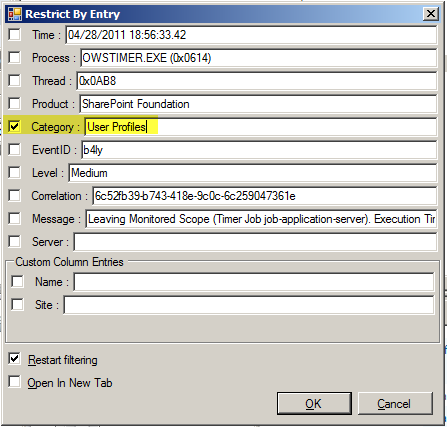
In ULS Log Viewer, right click on the log area and choose Filter by Item. Then choose Category and type in “User Profiles”. This will allow you to filter out only what you need at this point.

Started the User Profile Synchronization Service
Now you must restart your service with the new user profile synchronization service application that you just created.


And if you did everything correctly then you should see everything running as it needs to be:

Don’t forget to configure your MySite information in the new User Profile Service Application you created. You will need to re-run all of your profile synchronization.
Happy SharePointing. :)
Here is what I was getting…

To resolve it do the following things:
- Stop the User Profile Synchronization Service
- Open IIS (inetmgr)
- Click on the server name and select Authentication
- Selected Anonymous Authentication then choose Edit
- Click the specific user, then enter “IUSR”
- Add the service account to Local Admin group on the server
- Add the service account to all the FIM groups
- add the service account to the WSS_WSP and WSS_Admin_WPG group
- Perform an IISRESET
- Create a new User Profile Synchronization Service Application
- Started the User Profile Synchronization Service
Stop the User Profile Synchronization Service
First you have to start SharePoint PowerShell
- Go to Start
- Microsoft SharePoint 2010 Products
- Right click on SharePoint 2010 Management Shell
- Choose “Run as Administrator” from the context menu

Type in Get-SPServiceInstance then capture the GUID of the User Profile Synchronization Service as shown below

Now that you have the GUID, type in Stop-SPServiceInstance

Now your service is stopped…

…But we are not yet out of the woods… We have a lot left to go…
Open IIS (inetmgr)
Go to:
- Start
- Type in “inetmgr”
Click on your server host name, then double click Authentication

Selected Anonymous Authentication then choose Edit
Click on Anonymous Authentication then click Edit…

Click the specific user, then enter “IUSR”
Add IUSR to the specific user account

Add the service account to Local Admin group on the server
Go to:
- Start type in “compmgmt.msc”
- Go to Local Users and Groups
- Go to Groups
- Double Click Administrators

Add the service account to your computer

Click “OK” then keep the Computer Management window open
Add the service account to all the FIM groups
Do the exact same to all of the FIM groups as you did above

Add the service account to the WSS_WSP and WSS_Admin_WPG group
Again, do the same as you did above but for all the WSS_WSP and WSS_Admin_WPG groups

Perform an IISRESET
Go to:
- Start
- Type in “cmd”
- In the command shell type in “IISRESET”
- Create a new User Profile Synchronization Service Application

- Choose User Profile Service Application

Add the following fields (I added 2 to any of the database table names as shown below)

Click Create
Perform an IISReset
Make sure you can get to this new application with out errors. It is very important that you can access this and that you know you can at this point. If you can not, then you will have to do further trouble shooting…

Note: If still unable to get to the User Profile Application…
If you are still unable to get to the User Profile Application service, you will want to check one more thing. That is to ensure that your WCF services are still running in IIS Manager, you will need to make sure the site has been started

Perform another IISReset then try again.
Open ULS Log Viewer to get ready…
At this point in time, you will want to be ready to start tracing the User Profiles logs…
In ULS Log Viewer, right click on the log area and choose Filter by Item. Then choose Category and type in “User Profiles”. This will allow you to filter out only what you need at this point.
Started the User Profile Synchronization Service
Now you must restart your service with the new user profile synchronization service application that you just created.
- Navigate to Central Admin again
- Under System Settings, choose Manage Services on Server

- Click on Start under User Profile Synchronization Service

- Enter your system account’s password twice
- Click OK

- Now in the ULS Log Viewer you will notice the following, this is good, it is rebuilding the FIM configuration (formally called ILM, but SharePoint never updated the name)

And if you did everything correctly then you should see everything running as it needs to be:

Don’t forget to configure your MySite information in the new User Profile Service Application you created. You will need to re-run all of your profile synchronization.
Happy SharePointing. :)

Comments
Post a Comment